
 Knowledge Center
Forgot your Wi-Fi password or want to update your network? Follow these steps.
4 Simple Steps to Change Your Wi-Fi Name and Password via the Website
This method is ideal if you are unsure of your router model or prefer not to use a computer. The process can be done instantly from any device, including smartphones, tablets, or computers. Here are the steps:
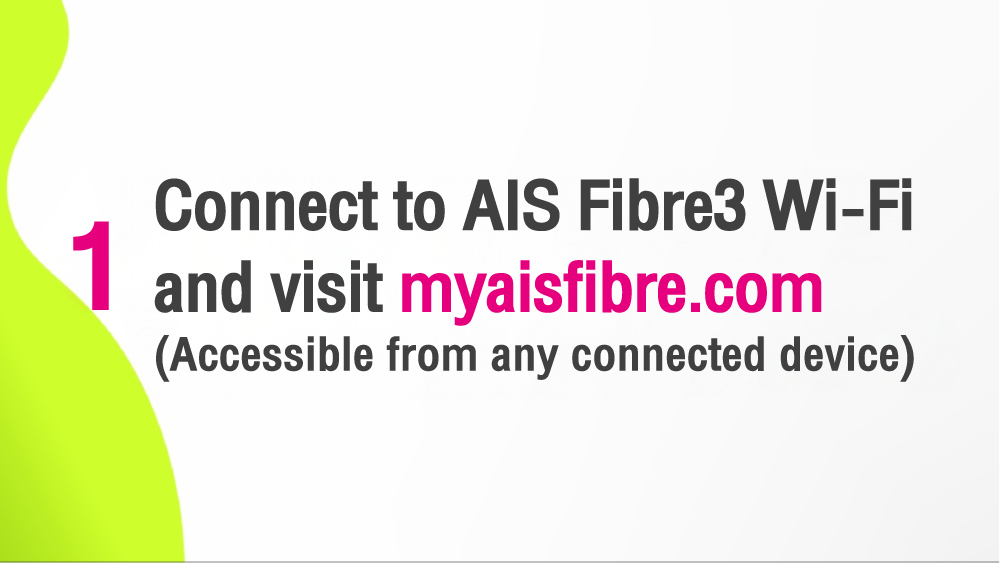
1. Connect to AIS Fibre3 Wi-Fi and visit myaisfibre.com
(Accessible from any connected device)
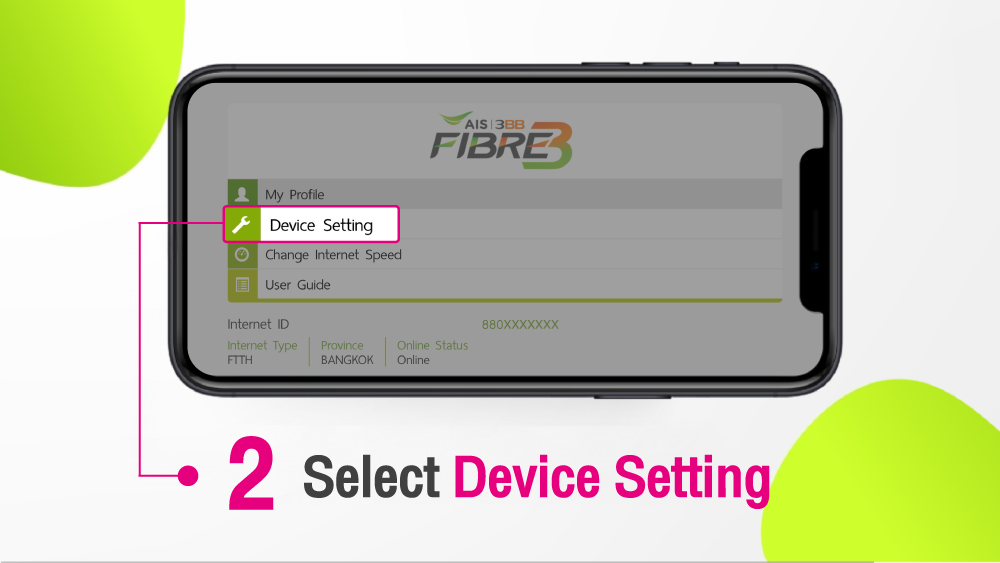
2. Select "Device Setting"
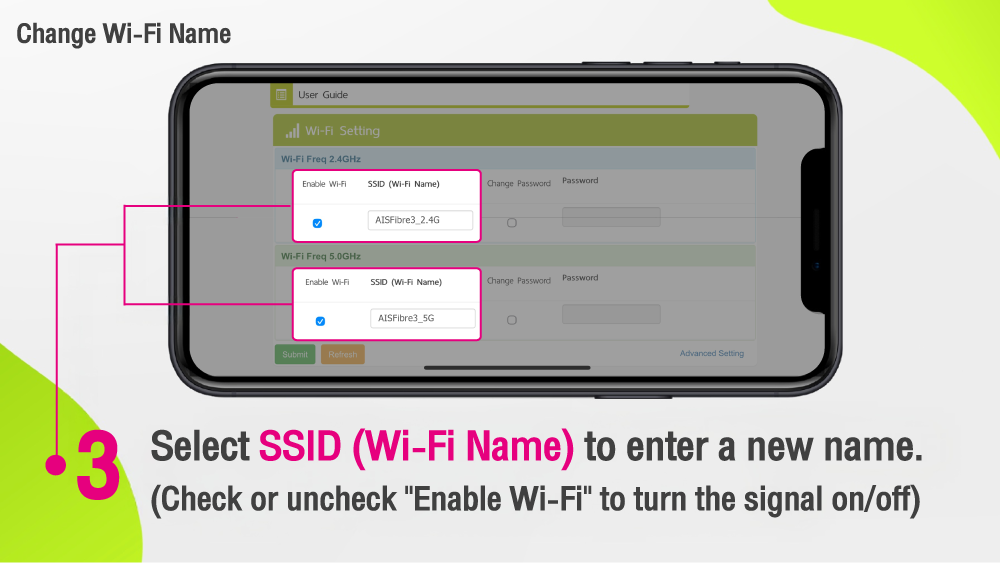
Change Wi-Fi Name
3. Select "SSID (Wi-Fi Name)" to enter a new name.
(Check or uncheck "Enable Wi-Fi" to turn the signal on/off)
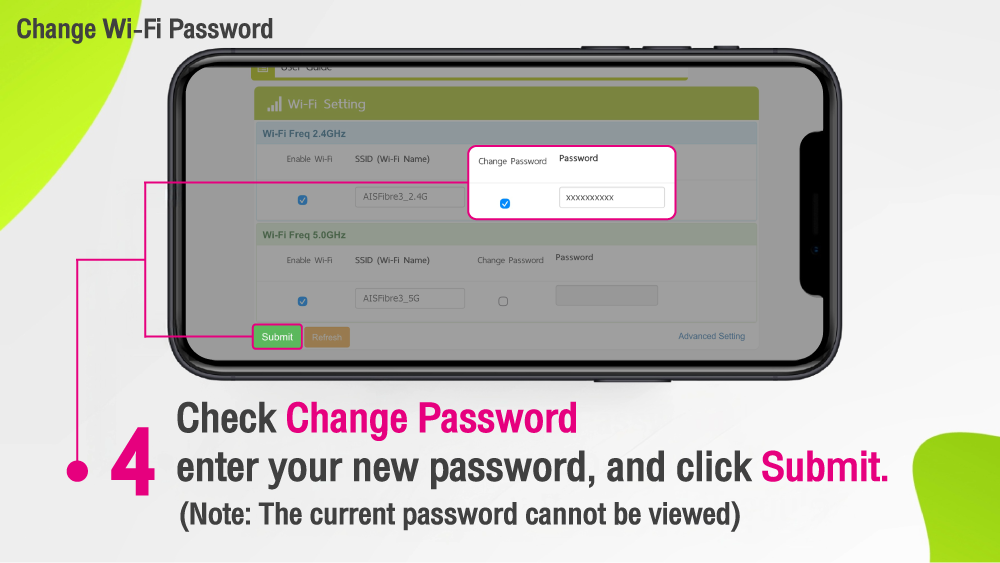
Change Wi-Fi Password
4. Check "Change Password", enter your new password, and click "Submit".
(Note: The current password cannot be viewed)
Your Wi-Fi name and password are now successfully updated. If you are unable to click the "Device Setting" button, please submit a report for troubleshooting via the myAIS application. Click here
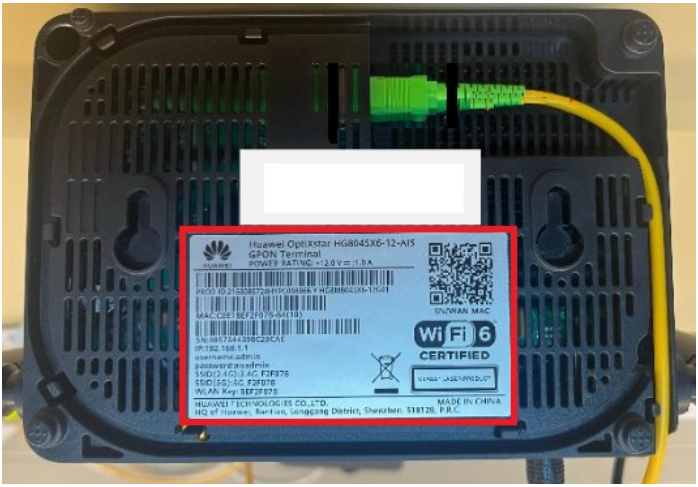
Alternatively, you can find the IP address on the bottom of your router, enter it into a web browser, and follow the configuration instructions specific to your model. View the settings for your router model Click here
Example of the router's bottom label